Semantic HTML tags every beginner should know form the backbone of well-structured, accessible, and search-friendly web pages. If you've ever converted plain text to HTML and ended up with nothing but <div> and <span> tags everywhere, you already understand the problem. Without meaningful markup, browsers, screen readers, and search engines struggle to interpret your content.
The difference between a page that ranks and one that doesn't often comes down to proper HTML structure. Learning semantic tags is not optional; it's a foundational skill that separates hobbyist code from professional output.
This guide walks you through the most important semantic elements, explains why they matter, and shows you exactly how to use them. If you're working with any plain text to HTML conversion workflow, understanding these tags will immediately improve your results. Let's get practical.
Key Takeaways
- Semantic HTML tags describe the meaning of content, not just its appearance on screen.
- Using proper HTML formatting improves accessibility for screen readers and assistive technologies significantly.
- Search engines reward pages with clear HTML structure by ranking them higher in results.
- Replacing generic divs with semantic elements requires minimal effort but yields major benefits.
- Every beginner should memorize roughly a dozen core semantic tags to write professional markup.
Step 1: Understand What Semantic HTML Means
Semantic HTML refers to using tags that convey the purpose of the content they wrap. A <nav> element tells every parser, "this is navigation." A <div>, on the other hand, says nothing at all. The word "semantic" literally means "relating to meaning," and that's exactly what these elements provide. When you write semantic markup, you're building a document that machines and humans alike can understand without guessing.
The practical benefits are measurable. Google's own documentation encourages structured, meaningful HTML because its crawlers use element types to determine content hierarchy. Screen readers rely heavily on semantic tags to announce sections, navigation landmarks, and article boundaries to visually impaired users. Without these cues, your content becomes a flat wall of indistinguishable text, regardless of how beautiful your CSS makes it look.
Semantic vs. Non-Semantic Tags
Non-semantic tags like <div> and <span> are layout containers. They exist purely for styling hooks and grouping. Semantic tags like <header>, <article>, and <aside> carry inherent meaning. The browser, the search engine, and assistive technology all treat them differently. You should think of non-semantic tags as last-resort containers, used only when no semantic alternative fits.
A useful mental test: if you removed all CSS from your page, would a reader still understand the document's structure? If the answer is yes, your semantic HTML is doing its job. This test forces you to think beyond visual presentation and focus on the underlying HTML structure that gives your content real meaning and portability across devices and contexts.
Strip all CSS from your page during development to visually verify your semantic structure makes sense on its own.
Step 2: Learn the Core Semantic HTML Tags Every Beginner Should Know
Document Structure Tags
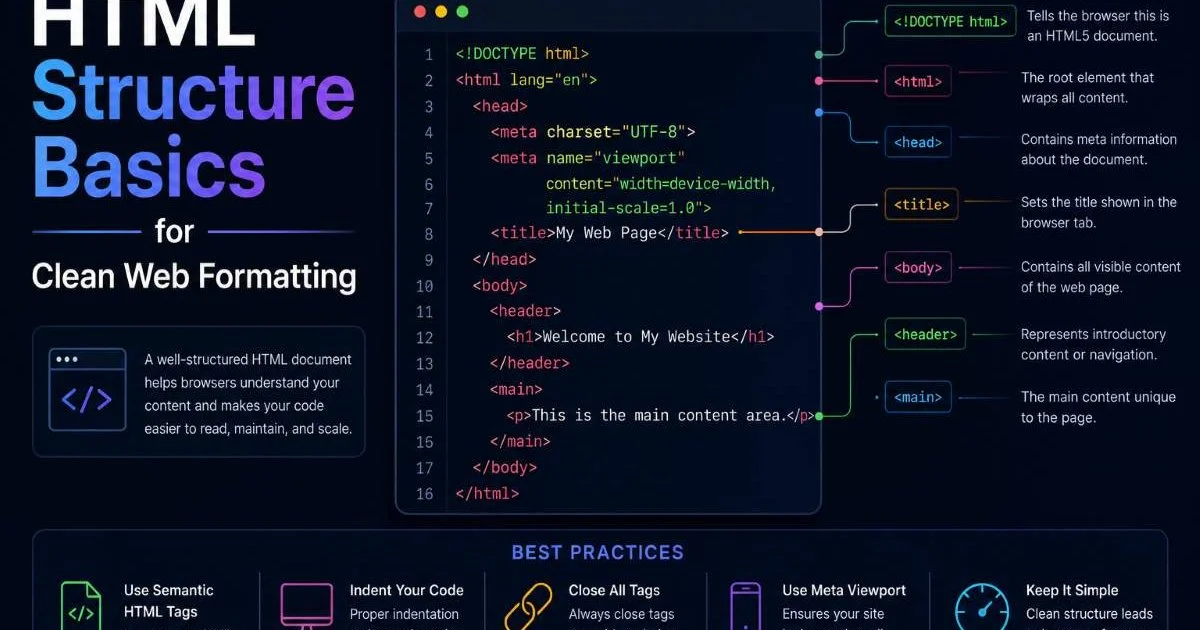
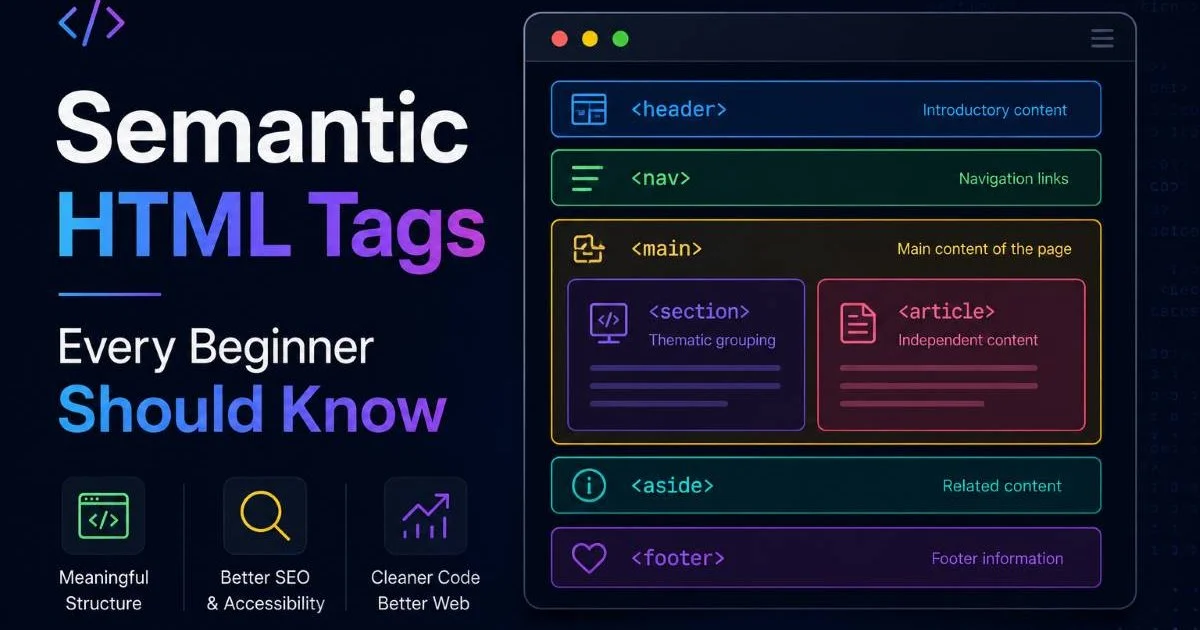
The first group of semantic tags defines the overall layout of your page. The <header> element wraps your site's branding, logo, and primary navigation. The <nav> element should contain your main menu or any significant collection of navigation links. The <main> element wraps the dominant content of the page, and it should appear only once per document. The <footer> element holds copyright notices, secondary links, and contact information.
These four tags alone transform a page from a generic block of HTML formatting into a well-organized document. Think of them as the walls, roof, and foundation of a house. They tell the browser where the core content lives and where the supplementary pieces sit. Every modern website should use all four of these elements as a baseline structure, regardless of complexity.
| Tag | Purpose | Typical Content | Use Frequency |
|---|---|---|---|
| <header> | Introductory content | Logo, navigation, hero | Every page |
| <nav> | Navigation links | Menus, breadcrumbs | Every page |
| <main> | Primary page content | Articles, forms, tools | Once per page |
| <article> | Self-contained content | Blog posts, cards | As needed |
| <section> | Thematic grouping | Chapters, tab panels | As needed |
| <aside> | Tangential content | Sidebars, callouts | As needed |
| <footer> | Closing content | Copyright, links | Every page |
| <figure> | Illustrative content | Images, diagrams, code | As needed |
| <time> | Date or time value | Published dates | As needed |
Content-Level Tags
Beyond page structure, semantic HTML includes tags that describe specific content types. The <article> element is meant for standalone, distributable content like blog posts, forum entries, or news stories. The <section> element groups related content under a thematic heading. The <aside> element holds supplementary information that relates to the surrounding content but isn't part of it, such as sidebars or pull quotes.
Two often-overlooked tags deserve attention here. The <figure> element, paired with <figcaption>, wraps images, charts, or code examples with descriptive captions. The <time> element marks up dates and times with a machine-readable datetime attribute. Both tags give search engines explicit data points they can use for rich results. If you're using an HTML compiler to test your code, try adding these elements and inspect how browsers render them in the accessibility tree.
The <article> element doesn't mean "blog post." Any self-contained, independently distributable piece of content qualifies.
Step 3: Apply Semantic Tags in Real Projects
Converting Text to Markup
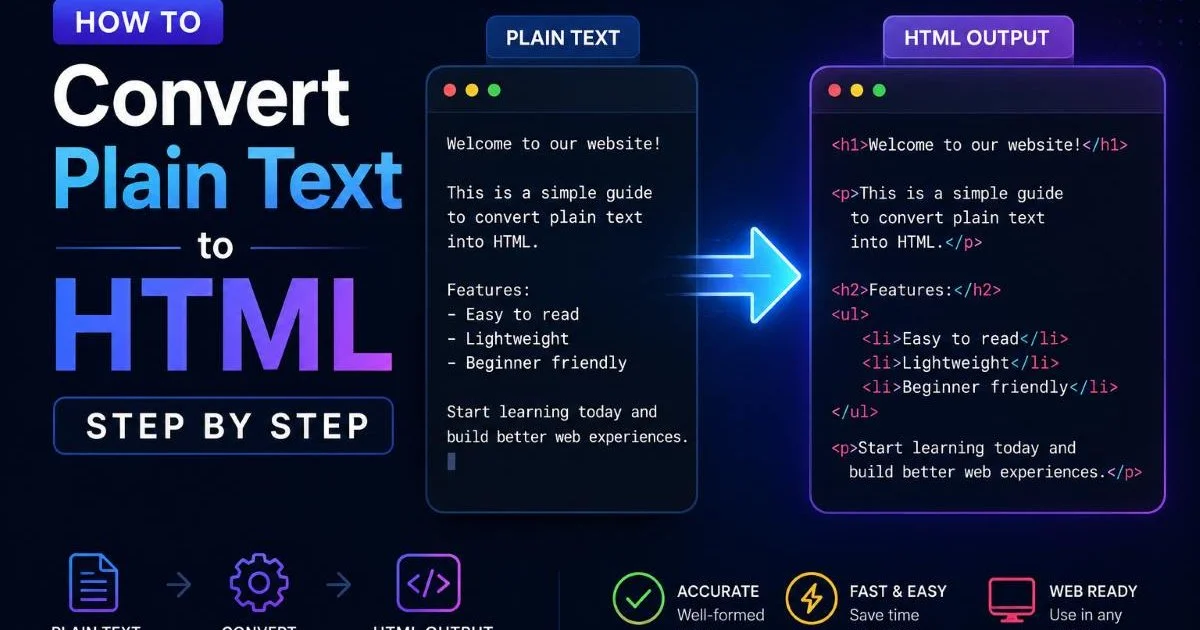
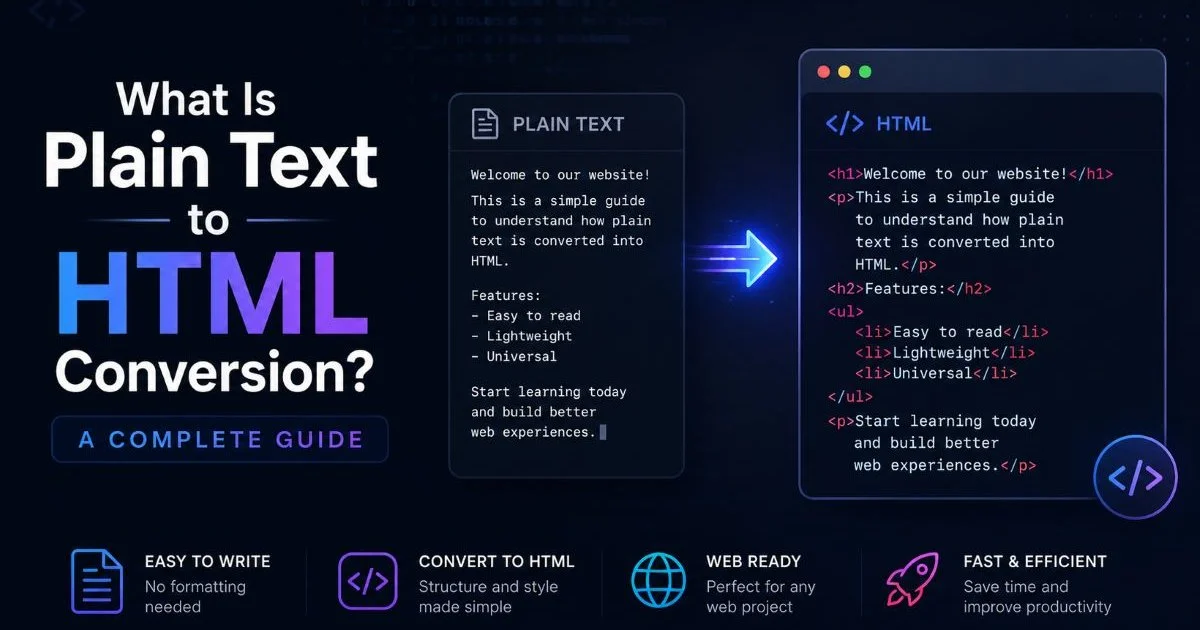
The most common scenario where beginners encounter semantic HTML is during text to markup conversion. You have a plain text document, maybe a blog draft or product description, and you need to transform it into structured HTML. The instinct is to wrap everything in divs, add some classes, and style it visually. That approach works for the screen but fails everywhere else. A better workflow starts by identifying the content's natural sections and assigning appropriate semantic tags.
Start with the outermost containers. Is this content the primary focus of the page? Wrap it in <main>. Is it a self-contained article? Use <article>. Does it break down into distinct themes? Add <section> elements. This top-down approach mirrors how editors structure a printed document, with clear headings, subsections, and supporting materials. Many free HTML generator tools for beginners now support semantic output, which is worth checking before you hand-code everything from scratch.
"If you removed all CSS from your page and the structure still made sense, your semantic HTML is doing its job."
Here's a concrete example. Suppose you're converting a recipe from plain text to HTML. The entire recipe goes inside <article>. The ingredient list becomes an <ul> inside a <section>. The step-by-step instructions become an <ol> in another <section>. The photo of the finished dish is wrapped in <figure> with a <figcaption>. The publication date uses <time datetime="2025-01-15">. Every piece of content has a tag that explains what it is, not just where it sits visually.
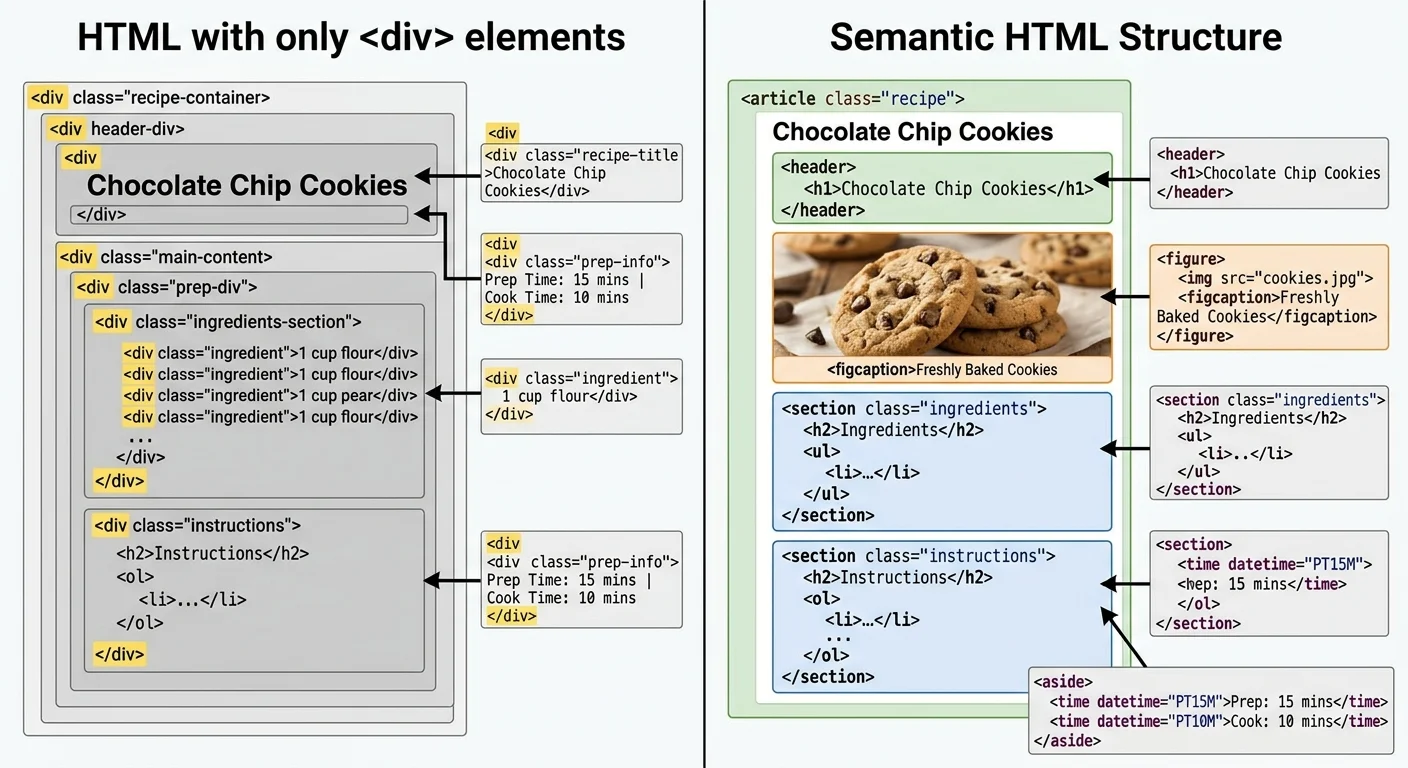
This approach to HTML formatting scales to any content type. Product pages, documentation, landing pages, and portfolios all benefit from the same thinking. The key habit is asking, "What is this content?" before asking, "How should this content look?" That single question will guide you toward semantic tags every time. Over weeks of practice, the correct tag choices become automatic, and your markup quality rises dramatically.
Step 4: Avoid Common Semantic HTML Mistakes
Overusing Section and Article
One of the most frequent mistakes beginners make is wrapping every block of content in a <section> or <article> tag. These elements have specific meanings, and using them as generic containers defeats their purpose entirely. A <section> should group thematically related content and almost always include a heading. If your section doesn't have a heading, you probably want a <div> instead. An <article> should be independently meaningful if taken out of the page context.
Using <section> without a heading creates an accessibility warning in most audit tools. Always pair sections with headings.
Another common error is nesting <main> inside other landmark elements or using it more than once. The spec is clear: one <main> per page, and it must not be a descendant of <article>, <aside>, <footer>, <header>, or <nav>. Violating this rule won't crash your page, but it will confuse screen readers and invalidate your document. Running your markup through a validator regularly catches these issues early.
Heading hierarchy is another area where beginners stumble. Skipping from <h2> to <h4> because of visual styling preferences breaks the document outline. Screen readers use heading levels to build a navigable table of contents. If your heading levels jump around, that table of contents becomes nonsensical. Always use headings in sequential order and control their visual size with CSS, not by picking a different heading level.
Finally, don't confuse presentational intent with semantic intent. Bold text (<b>) and strong emphasis (<strong>) look identical by default, but they carry different meanings. The <strong> tag indicates importance, while <b> simply applies a visual style. Similarly, <em> conveys stress emphasis, while <i> is for alternate voice or technical terms. Choosing the right tag matters when machines parse your content, even when humans see no visual difference at all. These details separate those who truly know semantic HTML tags every beginner should know from those who just memorized a list.
Use the W3C Markup Validation Service after every major edit to catch semantic errors your eyes might miss.
Frequently Asked Questions
?How do I replace div tags with semantic tags in existing code?
?When should I still use div and span over semantic tags?
?How long does it take a beginner to learn the core semantic tags?
?Does using section and article everywhere actually hurt SEO?
Final Thoughts
Mastering semantic HTML tags every beginner should know is one of the highest-return investments you can make as a web developer or content creator. The tags themselves are simple; the discipline of using them consistently is what sets your work apart. Start by auditing your current projects, replacing generic divs with meaningful elements, and validating your output.
Build the habit of asking what content means before deciding how it looks. Within a few weeks, semantic markup will feel natural, and your pages will be stronger for it.
Disclaimer: Portions of this content may have been generated using AI tools to enhance clarity and brevity. While reviewed by a human, independent verification is encouraged.