HTML structure basics for clean web formatting is the foundation every developer and content creator needs to understand before publishing anything on the web. Whether you're converting a blog draft into a live page or building a component library, the way you organize your HTML determines readability, accessibility, and how search engines interpret your content.
Poor structure leads to bloated pages, broken screen reader experiences, and inconsistent rendering across browsers. Strong structure does the opposite: it communicates meaning, supports styling, and scales with your project. This guide walks you through four practical steps to get your HTML structure right from the start, with real examples you can apply immediately.
Key Takeaways
- Use semantic HTML elements instead of generic divs to communicate content meaning to browsers.
- A logical heading hierarchy (h1 through h6) improves both accessibility and SEO performance.
- Converting plain text to HTML requires deliberate choices about which tags to apply where.
- Validation tools catch structural errors that visual inspection alone will miss every time.
- Clean formatting starts with consistent indentation, nesting, and a predictable document outline.
Step 1: Build a Proper Document Skeleton
The Essential Boilerplate
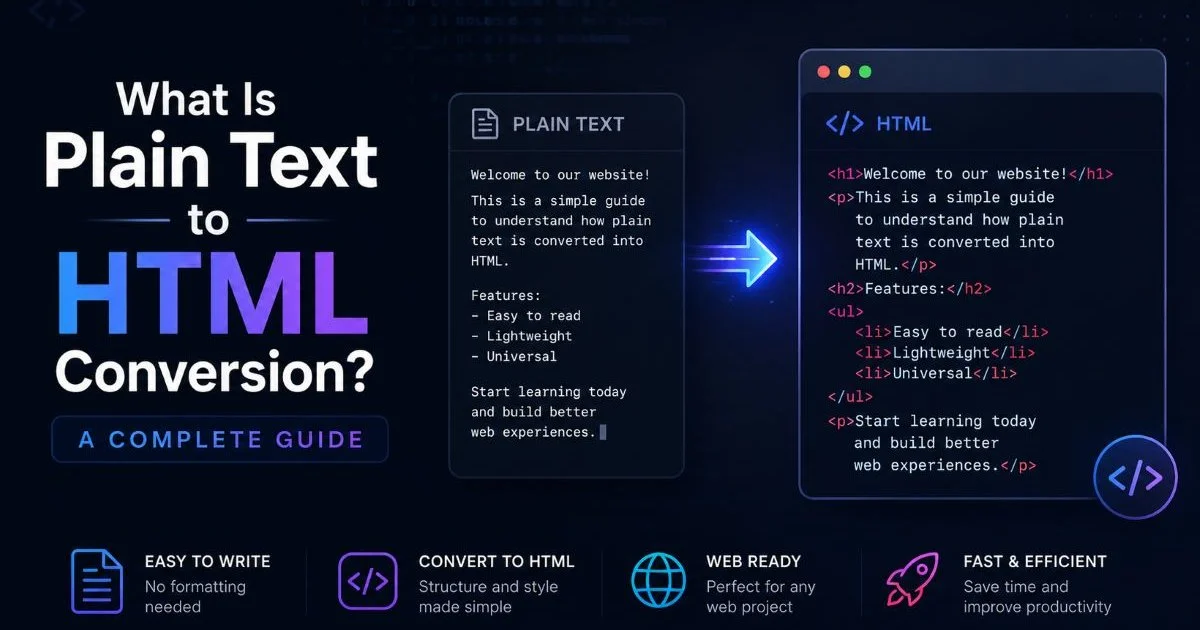
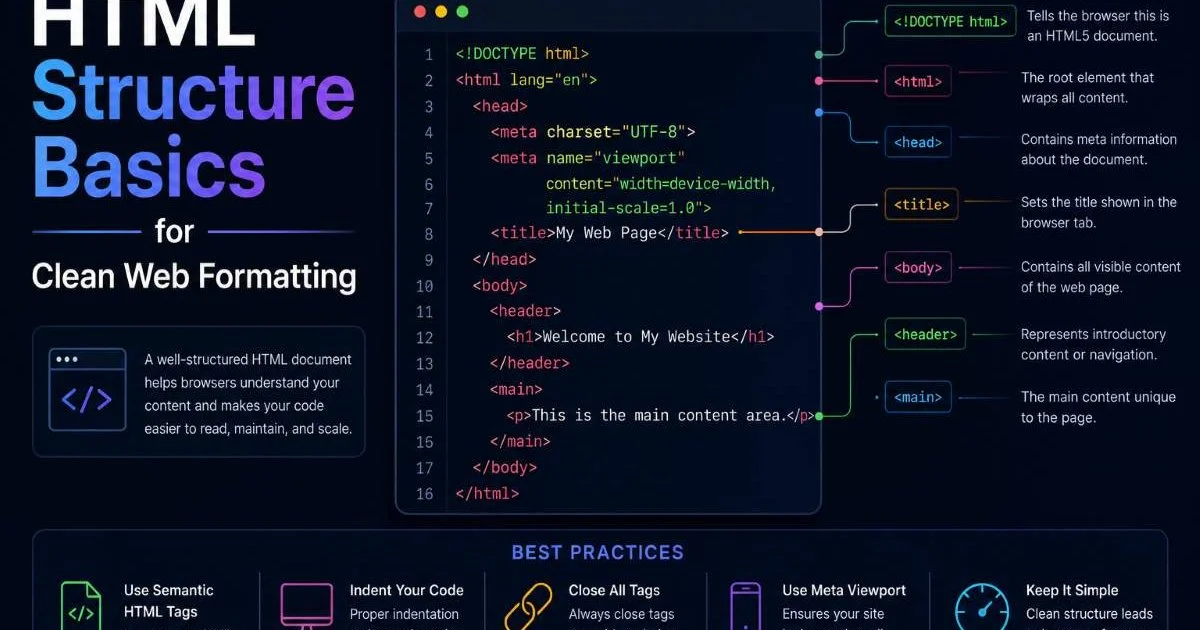
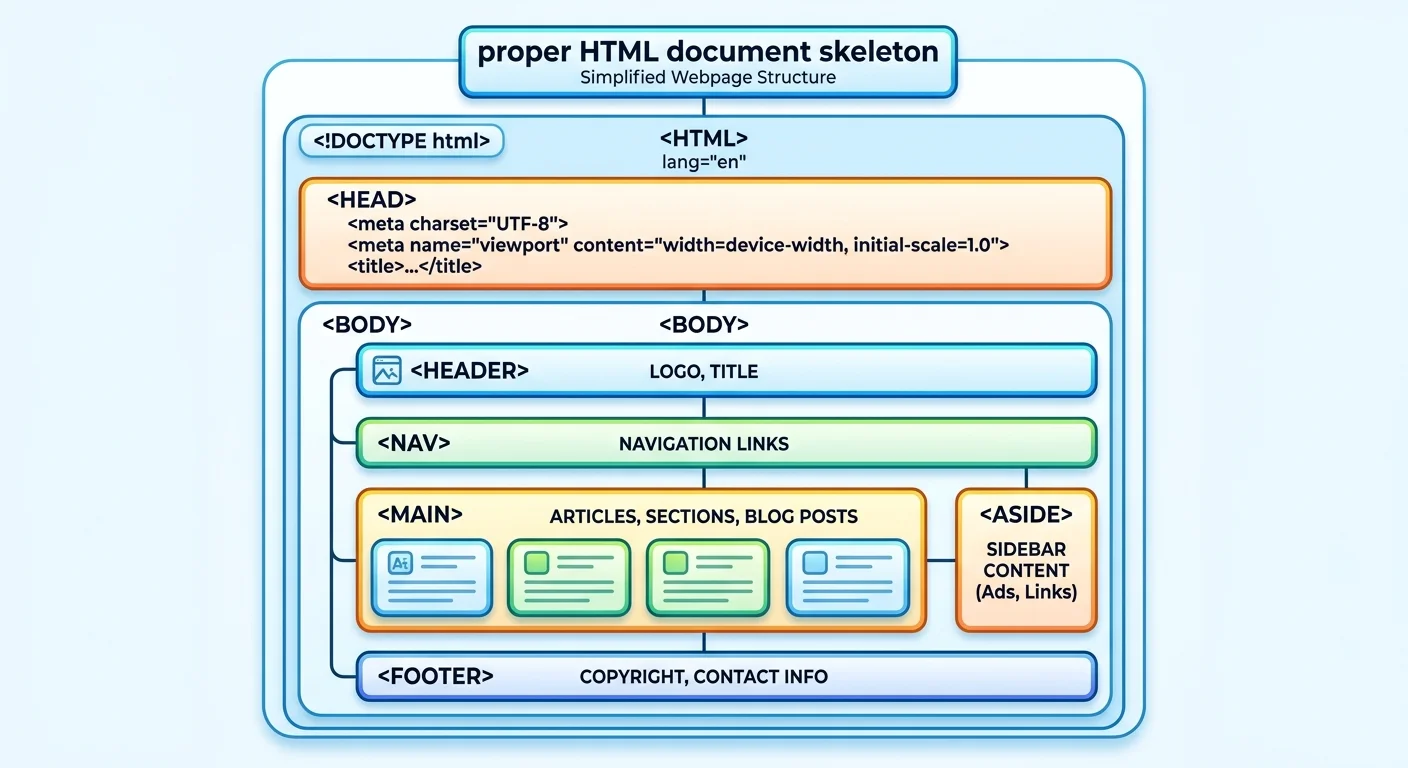
Every well-formatted HTML page starts with a proper document skeleton. The doctype declaration, html element with a lang attribute, head section with charset and viewport meta tags, and a body element form the minimum viable structure. Skipping any of these causes problems: omitting the viewport meta tag breaks responsive behavior on mobile devices, and leaving out charset can produce garbled characters for international content. If you're new to this process, our guide on what plain text to HTML conversion actually involves covers the conceptual groundwork.
The head section is where you declare your page title, link stylesheets, and include meta descriptions. A common mistake is treating the head as an afterthought and stuffing it with unnecessary scripts. Keep it lean. Your title tag should be descriptive and unique per page. Link only the CSS files you actually need, and defer JavaScript loading with the defer attribute to avoid blocking the initial render.
Sectioning Elements That Matter
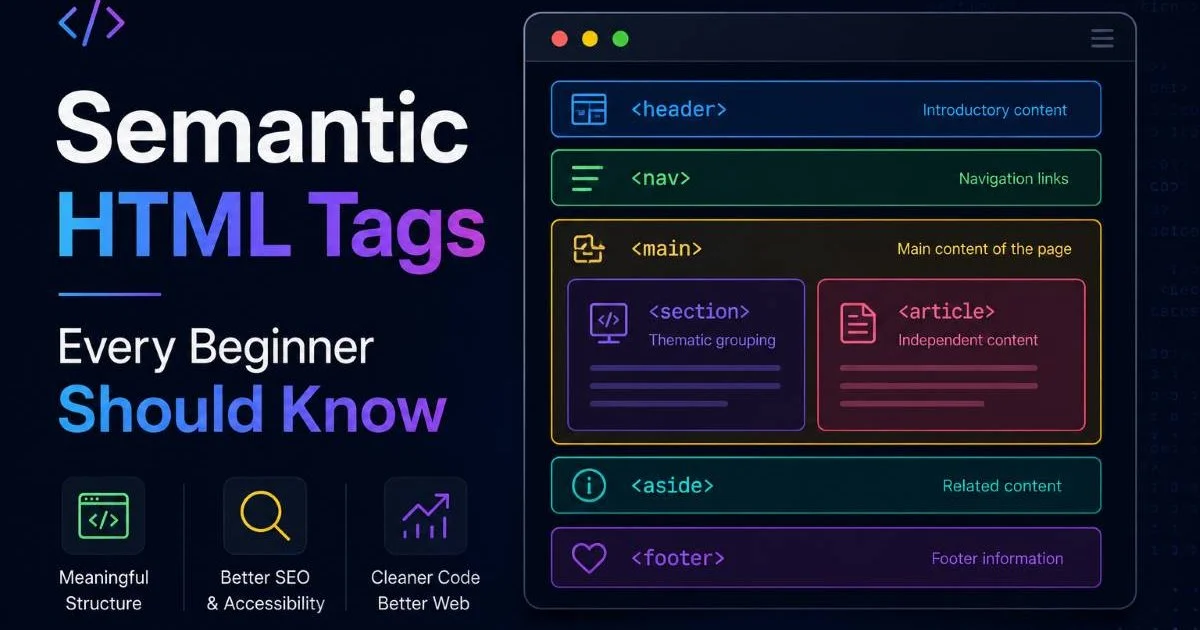
Inside the body, the main sectioning elements are header, nav, main, aside, and footer. These are not decorative labels. Browsers and assistive technologies use them to build an accessibility tree, which is the structural map screen readers rely on to navigate your page. A sighted user scans headings visually; a screen reader user depends on these landmarks to jump between sections efficiently.
Wrap your primary content area in a single
The main element should appear exactly once per page and contain only the dominant content, not repeated navigation or footers. Use header and footer within article elements when you need local headers and footers for individual content blocks. This nesting pattern is perfectly valid HTML and adds granular structure that generic div elements simply cannot provide. Getting this skeleton right is the first step toward HTML structure basics for clean web formatting.
Step 2: Master Semantic HTML for Meaningful Markup
Choosing the Right Element
Semantic HTML means using elements that describe their content's purpose rather than its appearance. An h2 tag says "this is a second-level heading," while a div with a large font class says nothing about meaning. The distinction matters because search engine crawlers, screen readers, and browser reader modes all interpret semantic tags directly. If you want a deeper look at the available tags, our article on semantic HTML tags every beginner should know breaks down the most useful ones.
Headings deserve special attention. Use a single h1 per page for the primary title, then h2 for major sections, h3 for subsections within those, and so on. Never skip levels (jumping from h2 to h4) because this breaks the document outline and confuses both users and crawlers. Think of headings as a table of contents for your page. If the hierarchy doesn't make sense when read as an outline, your structure needs revision.
Common Mistakes to Avoid
One persistent mistake is using semantic elements purely for styling. Developers sometimes use blockquote to indent text or strong just to make text bold visually, even when no emphasis is intended. This pollutes the semantic layer. Use CSS for visual styling and reserve HTML tags for their intended meaning. A blockquote should contain an actual quotation. A strong element should mark text that has genuine importance in the context of the surrounding content.
Another frequent error is div soup, where every element on the page is wrapped in nested divs with class names doing all the semantic heavy lifting. While divs have their place as generic containers for layout purposes, they carry zero semantic weight. Replacing just a handful of outer divs with appropriate section, article, or aside elements can dramatically improve your page's accessibility score without changing a single line of CSS.
Screen readers may skip or misinterpret content wrapped only in div elements, so use semantic alternatives wherever possible.
Step 3: Convert Plain Text to Well-Structured HTML
Mapping Text Patterns to Tags
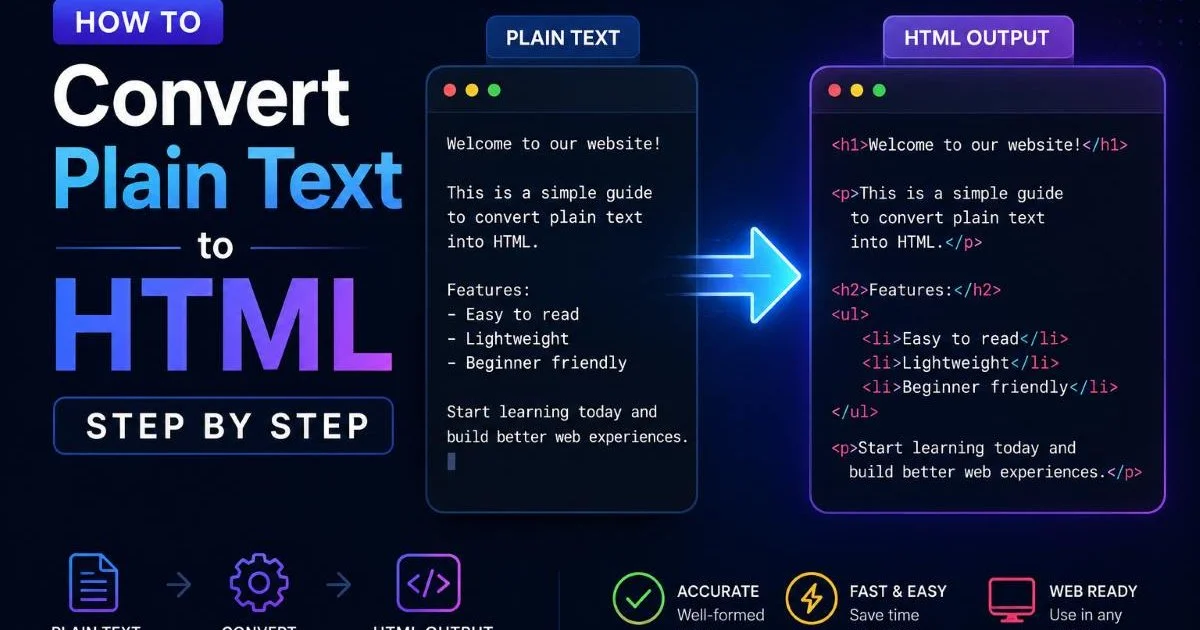
The process of turning plain text to HTML is fundamentally about pattern recognition. When you look at a plain text document, you see paragraphs separated by blank lines, titles indicated by capitalization or position, and lists suggested by bullet characters or numbered sequences. Your job is to map those visual patterns to the appropriate HTML elements. A blank-line-separated block becomes a p element. A line that reads like a title becomes an h2 or h3. Understanding the key differences between plain text and HTML makes this mapping process far more intuitive.
Tables in plain text often appear as tab-separated or pipe-delimited rows. Converting these into proper table, thead, tbody, and td elements gives the data real structure. Links written as raw URLs in plain text should become anchor elements with descriptive link text. Email addresses, phone numbers, and dates all have corresponding HTML patterns that add machine-readable meaning to otherwise flat content.
Tools and Workflows
You can handle text to markup conversion manually for small documents, but automated tools save significant time on larger projects. The TXT to HTML converter at txttohtml.dev processes plain text files and applies logical HTML formatting based on content patterns. For cleaning up already-converted HTML, an HTML formatter tool can standardize indentation and fix nesting errors automatically. These tools complement each other well in a content publishing workflow.
Run your converted HTML through a formatter before publishing to catch inconsistent indentation and unclosed tags.
For step-by-step guidance on performing this conversion yourself, our walkthrough on how to convert plain text to HTML step by step covers the complete process from raw text file to publishable markup. Additionally, this resource on turning plain text into HTML offers another practical perspective worth reviewing. The key takeaway is that HTML structure basics for clean web formatting apply whether you're writing code by hand or using conversion tools.
| Plain Text Pattern | HTML Element | Purpose |
|---|---|---|
| Blank-line separated block | <p> | Paragraph of body text |
| Line starting with dash or bullet | <ul><li> | Unordered list item |
| Numbered line (1. 2. 3.) | <ol><li> | Ordered list item |
| Tab-separated rows | <table><tr><td> | Tabular data |
| ALL CAPS or bold-style line | <h2> or <h3> | Section heading |
| Raw URL (https://...) | <a href="..."> | Hyperlink with descriptive text |
"Clean HTML formatting is not about aesthetics in your code editor; it is about meaning, accessibility, and long-term maintainability."
Step 4: Validate and Refine Your HTML Formatting
Running Validation Checks
Writing HTML that looks correct in a browser is not the same as writing valid HTML. Browsers are extremely forgiving; they silently fix unclosed tags, guess at nesting errors, and render broken markup as best they can. This forgiveness masks real problems. The W3C Markup Validation Service (validator.w3.org) parses your HTML against the specification and reports every error and warning. Running your pages through this validator should be a standard part of your publishing process.
Common validation errors include duplicate id attributes, improperly nested elements (like a div inside a span), missing alt attributes on images, and obsolete elements like center or font. Each of these has a concrete fix. Duplicate ids break JavaScript selectors and ARIA references. Missing alt text fails WCAG accessibility guidelines. Fixing these issues is straightforward once the validator tells you exactly where they are, and the result is HTML structure basics for clean web formatting applied consistently.
Maintaining Clean Code Over Time
Validation is a one-time check, but maintaining clean HTML formatting requires ongoing habits. Use consistent indentation (two spaces or four spaces, pick one and stick with it across your project). Configure your code editor with an HTML linter like HTMLHint that flags problems in real time as you type. Set up pre-commit hooks in your version control system to reject commits with validation errors. These small investments in process pay back enormously over time.
Prettier and similar auto-formatters can reformat your HTML on save, but always review the output since automated formatting sometimes breaks intentional whitespace in inline elements.
Code reviews should include a structural review of HTML, not just logic and styling checks. Ask whether the heading hierarchy makes sense, whether semantic elements are used appropriately, and whether the document outline reads logically without CSS. Teams that treat HTML as a first-class concern, rather than just a container for JavaScript frameworks, consistently produce more accessible and maintainable products. This discipline is what separates professional web development from just getting things to render on screen.
Finally, document your HTML conventions in a style guide or contributing file. Specify which semantic elements to use for recurring content patterns like author bios, callout boxes, or navigation submenus. When every team member follows the same structural patterns, your codebase stays predictable. New contributors can read the guide and produce consistent markup from day one, reducing code review friction and keeping your HTML structure clean as the project grows.
Frequently Asked Questions
?How do I validate my HTML structure without breaking live pages?
?Is using divs instead of semantic elements really that harmful?
?How long does it take to restructure a poorly built HTML page?
?Can I use multiple main elements if my page has several content sections?
Final Thoughts
HTML structure basics for clean web formatting is not an advanced topic, but it is one that many developers overlook after their initial learning phase. The four steps outlined here, building a proper skeleton, using semantic elements intentionally, converting text to markup thoughtfully, and validating your output, form a repeatable process.
Apply these steps to every page you publish. Your users, your future self debugging the code, and the search engines indexing your content will all benefit from the clarity that clean, well-structured HTML provides.
Disclaimer: Portions of this content may have been generated using AI tools to enhance clarity and brevity. While reviewed by a human, independent verification is encouraged.